The Director's Chair
You direct your intent, KText handles the execution. Then shape the output like a director—prompts, context, persona. Built for professionals who demand perfection, without the time commitment.
Flow 1: Draft from Scratch
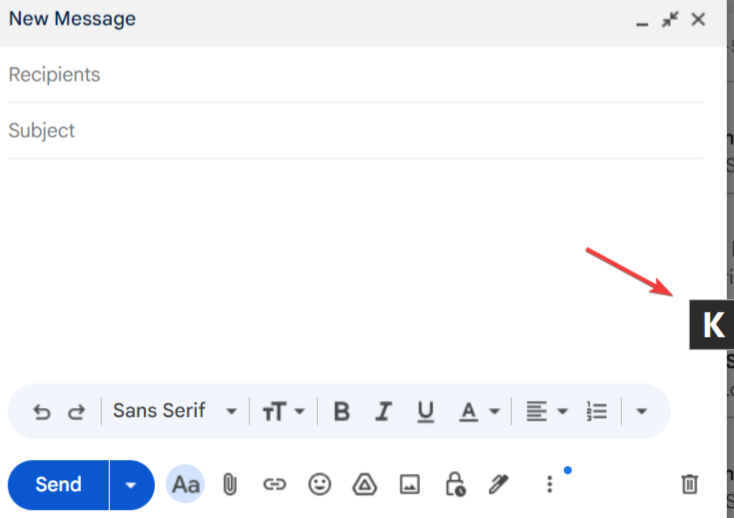
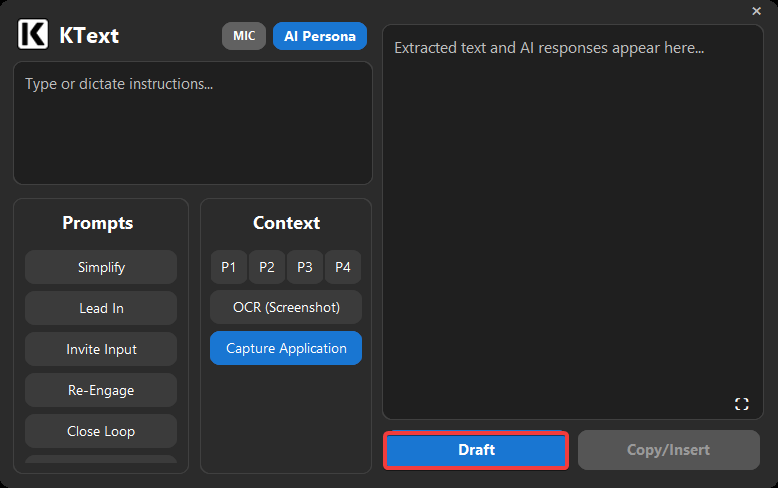
Click into any empty textbox—an email reply, a chat message, a ticket update. Hit the floating KText icon then click Draft and a response will be generated. Repeat to reroll.
KText uses what’s on your screen to infer what the response should do. It doesn’t need you to re-explain the thread.
Flow 2: Intent-First
(Type or Dictate)
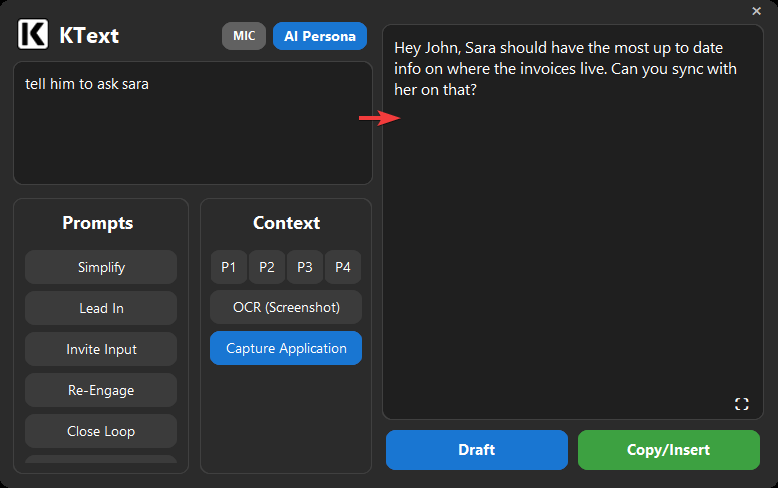
Open the floating KText icon like the draft flow, then type a rough intent or press the mic and speak the intent aloud.
Focus on the situation and the outcome you want, not the wording.
The assistant will take those raw thoughts and draft the full message for you. Leave the cognitive work to KText, letting it transform your thoughts into a polished response.
Flow 3: Rework & Refine
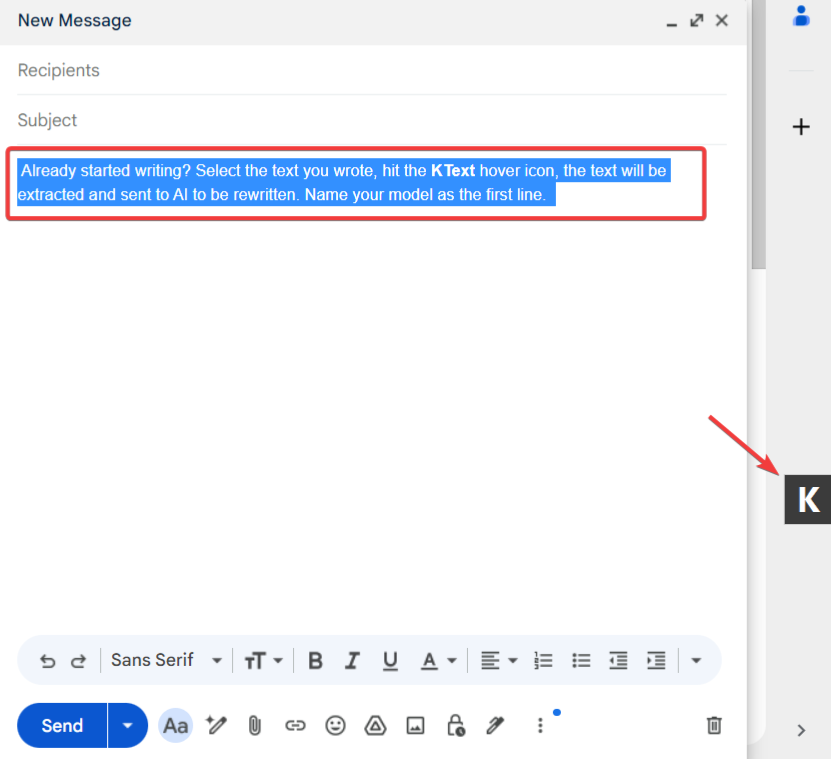
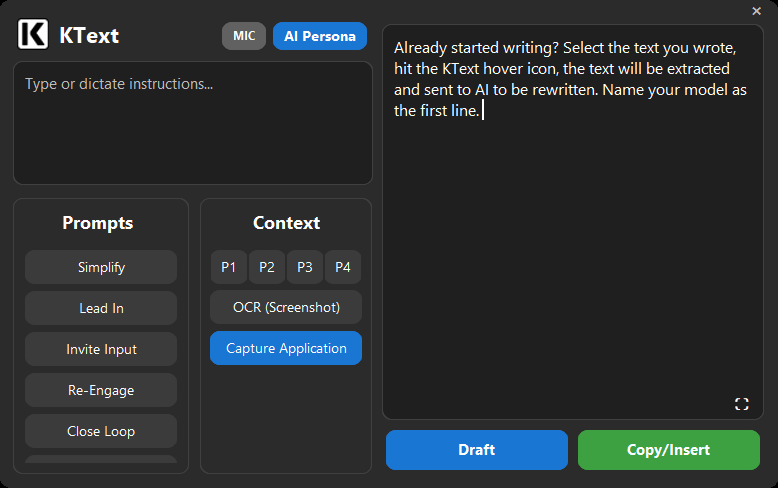
Already started writing? Select the text you wrote, hit the KText hover icon, the text will be extracted and sent to AI to be rewritten. Name your model as the first line.
KText's response always matches the moment.
Your Writing Control Panel
These are the pieces of KText that find the words to express your best self, always.
Intent Box
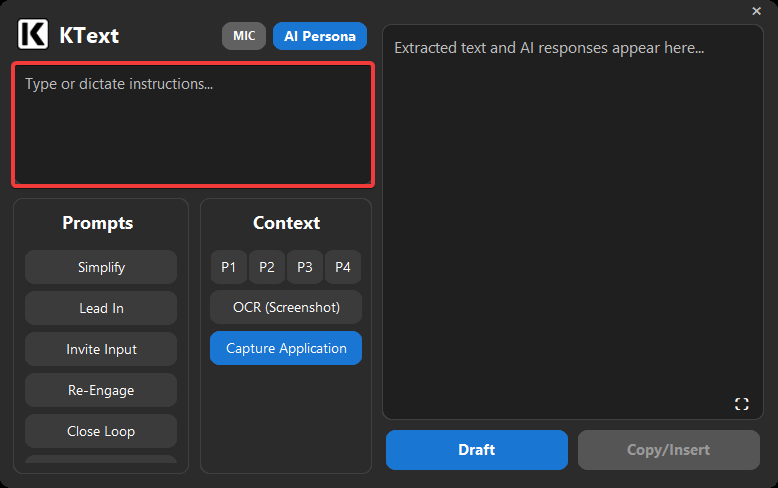
Tell KText what you want to happen—type it, or hit the mic button to dictate. The intent box is where you direct the outcome.
KText’s job is to bring that intent to life—even when your first pass is messy, incomplete, or unsaid.
AI Response Box
The AI response box is your working draft. If you had text selected when you clicked the hover icon, it appears here; otherwise, you can use it as a drafting area.
Clicking Draft sends your content to AI and returns the response here. If you edit the draft, those edits become the baseline for the next Reroll (Ctrl+Z to undo). Without edits, Reroll keeps using the original text as the baseline, ensuring you don't drift too far from the source.
When you click Copy/Insert, your markdown response from AI will be converted to HTML for compatibility across applications.
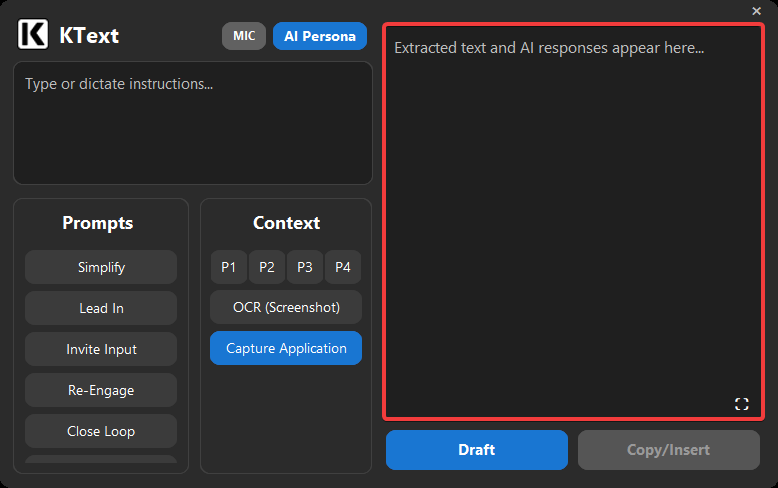
Prompt Selection
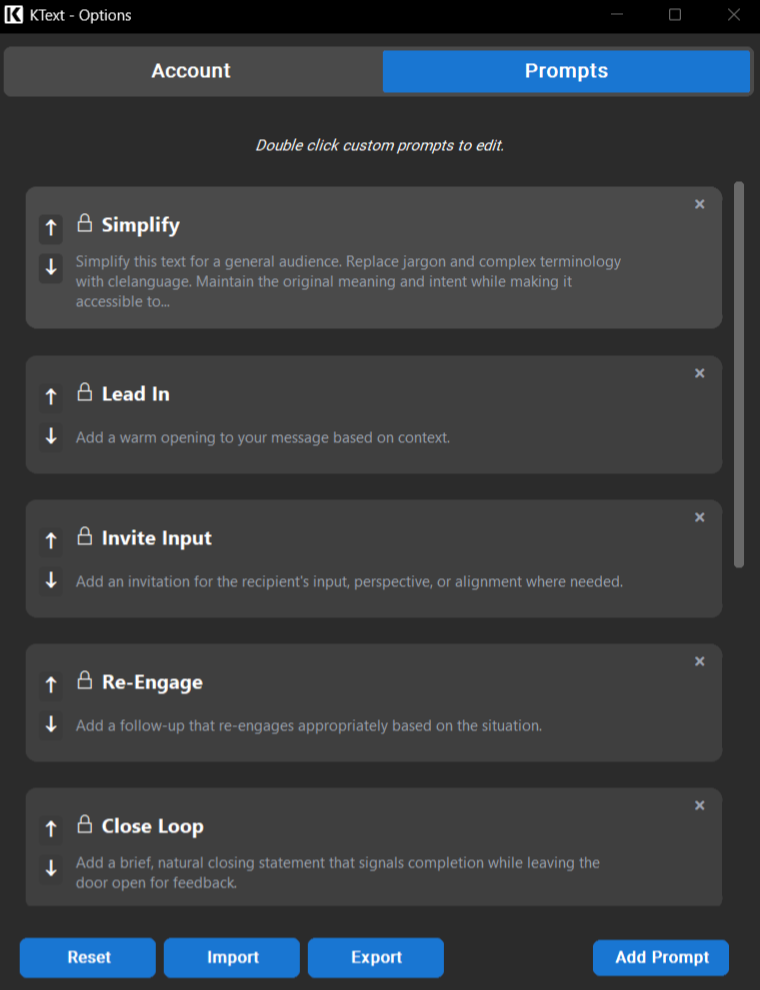
Pick a built-in prompt (like Simplify or Lead In). Prompts act as reusable “instructions” for repetitive tasks. You can multi-select prompts (Ctrl/Shift) to stack behaviors. Build your own to fit your needs.
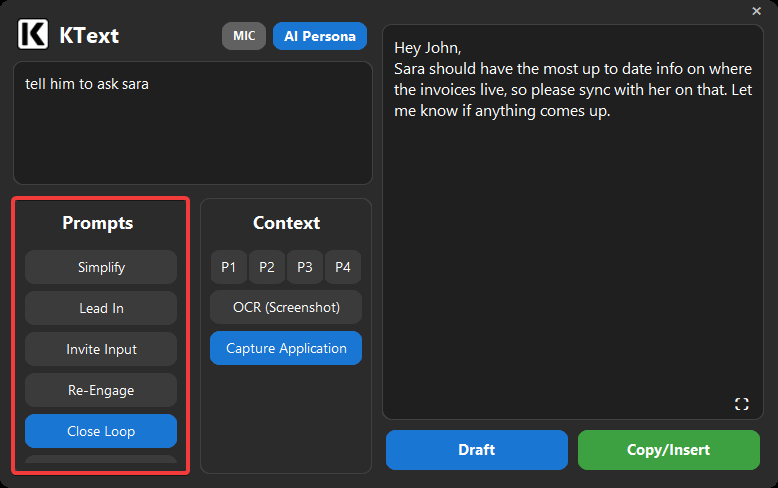
Context Selection
Give KText the context it needs to act like an assistant at your side—seeing what you see and anticipating what you need next. Use Capture Application to show it everything, or OCR to tap the screen and say, "look at this."
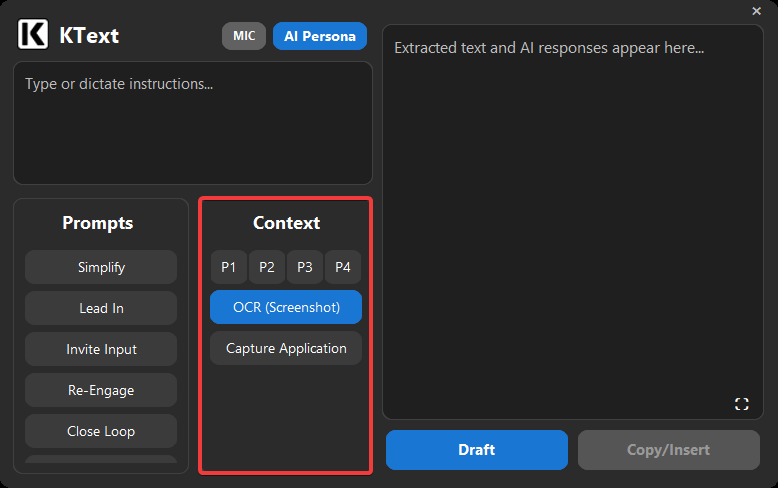
Paste Buttons (P1–P4)
Paste your context (Ctrl+V). Use P1–P4 as four separate 'context slots' to share background context to KText. Whether it's outage announcements, product details, a coworker's chat, or shared boilerplate your team uses, you can paste multiple sources so the draft draws from everything you were going to reference anyway—without you doing the mental work of stitching it together.
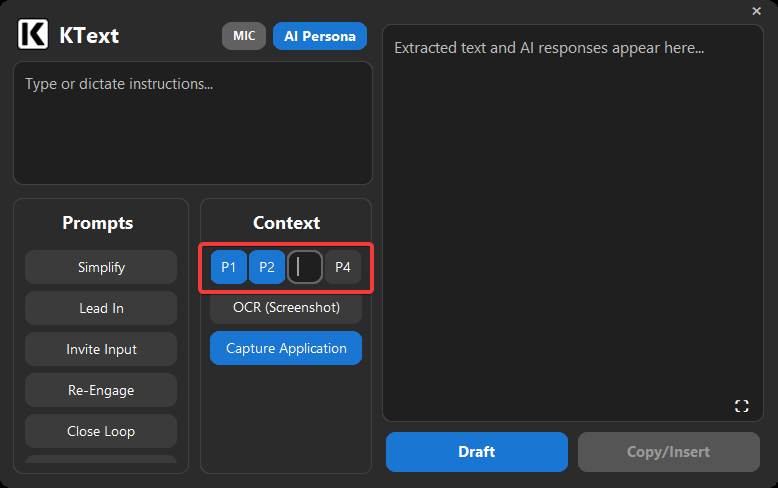
AI Persona
This is where you shape the engine and the voice behind every response.
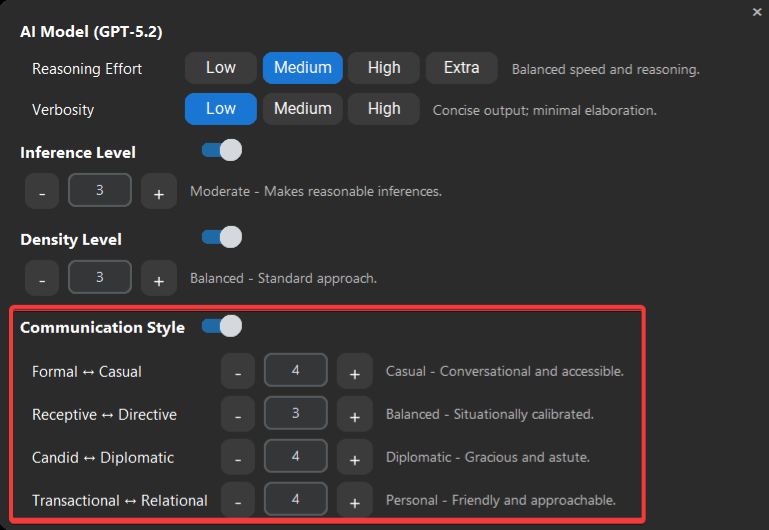
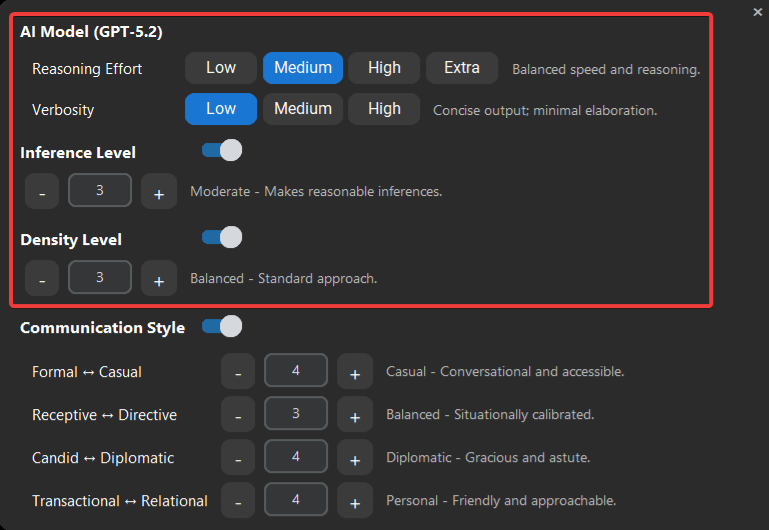
Model Preferences
Decide how much the AI thinks, expands, infers, and spells out your responses.
- Reasoning Effort Controls how deeply the AI thinks through the situation before answering.
- Verbosity Sets how detailed the response is, including how much supporting explanation and extra context gets included.
- Inference Level Controls how much the AI “reads between the lines” and extends your intent beyond the exact words.
- Density Level Adjusts how much background you assume the reader already knows versus how much you spell out.
Communication Style
Whether you're chatting with a coworker, emailing a client, or reaching out to someone new, pick the right tone to match the moment.
- Formal uses structured, polished language that maintains professional distance. Casual embraces conversational flow and natural authenticity.
- Receptive reflects an accommodating approach that invites input. Directive embodies decisive leadership that drives outcomes.
- Candid favors directness and clarity without softening. Diplomatic emphasizes graciousness and tactful framing that preserves dignity.
- Transactional maintains clear professional boundaries focused on tasks. Personal prioritizes relationship-building and human connection.